The field app is a website: open it in Safari or Chrome on your iPhone or iPad and add it to your Home Screen. There's nothing to download from the App Store. Sign in with your Krise Google account, the same as the office.
Your day
- 1Today shows your visits in order, the one to go to now, and the time between them.
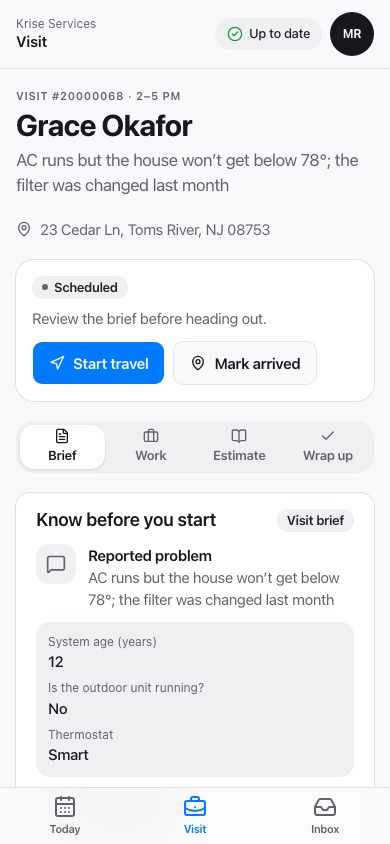
- 2Tap a visit to open it. Each visit has four parts: Brief, Work, Estimate and Wrap up.
- 3Inbox has your jobs' team chat, the customer texts on today's jobs (to read), follow-ups and notifications.
A visit, step by step
- 1Start travel when you leave, Mark arrived when you get there. Pause, Resume and Complete visit work the same way.
- 2Brief: the reported problem and the call's answers, directions, the equipment on site, the customer's earlier jobs and the office's notes.
- 3Work: your findings for the customer, the job's checklist and readings, photos from the camera, and a note for the team (the customer never sees it).
- 4Estimate: shop the Pricebook, build the options, present them, and the customer signs on your device. Prices always come from the office.
- 5Wrap up: the visit record, then finalize the invoice and take cash or a check. Card payments come once Stripe is connected; nobody ever types a card into the app.
Materials pickups
- 1In Brief, under Materials & tags, press Add pickup details: the items and how many, the supplier, the order number, when it's ready, where to pick it up, and who picks it up.
- 2Press Confirm pickup details. Complete, it becomes a reminder for whoever picks it up. Anything missing says In office review, with what it still needs.
- 3Once you have the materials, press Mark picked up. The reminder ends and the pickup tag comes off the job.
- 4Only the pickup's person, whoever saved it last, or the office can change it. Everyone else on the job sees it.
With no signal
- Everything you tap or type is saved on your phone first and shows at once. Each change says where it is: Saved on this device, Sending…, Confirmed by the office, or Refused with the office's reason.
- Changes send by themselves when the signal comes back. Keep the app open until they say Confirmed by the office.
- Presenting, signing, finalizing an invoice and taking a payment need a signal, and say so.
Good to know: signing out deletes everything the app kept on the phone. If something hasn't reached the office yet, it warns you first.