Stockyard is where material is ordered and followed until it's on the truck: vendor orders, the warehouse and trucks, warranty claims and returns. It's under Operations in the menu.
Follow the orders
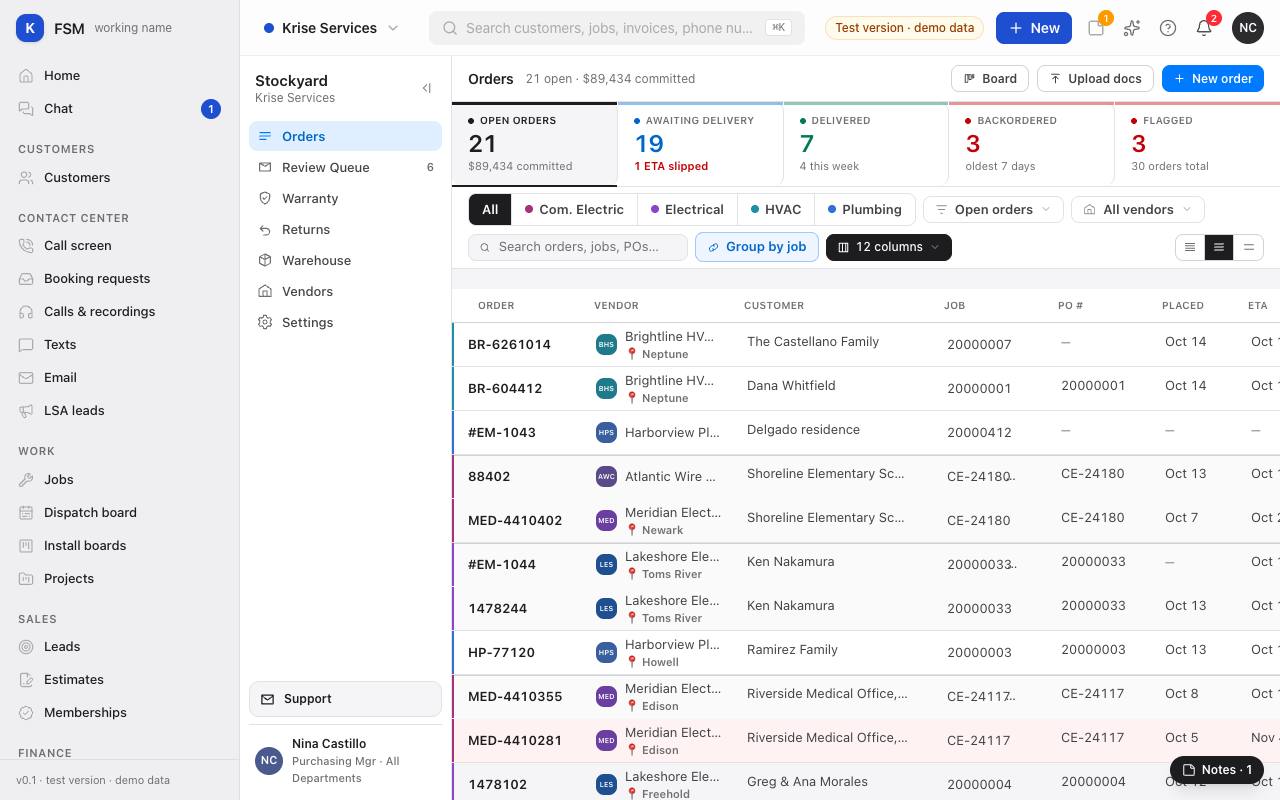
- 1Open Stockyard. Orders lists every order with its vendor, customer, job, PO, when it was placed and when it's due.
- 2The cards across the top count Open orders, Awaiting delivery, Delivered, Backordered and Flagged.
- 3Narrow it by division, by status or by vendor, or search by order, job or PO number.
- 4Click an order to see its lines, prices, timeline and who's watching it.
Tip: an order on a job shows on that job's page under Material, and on the schedule, so the office and the tech know when it's ready.
Place an order
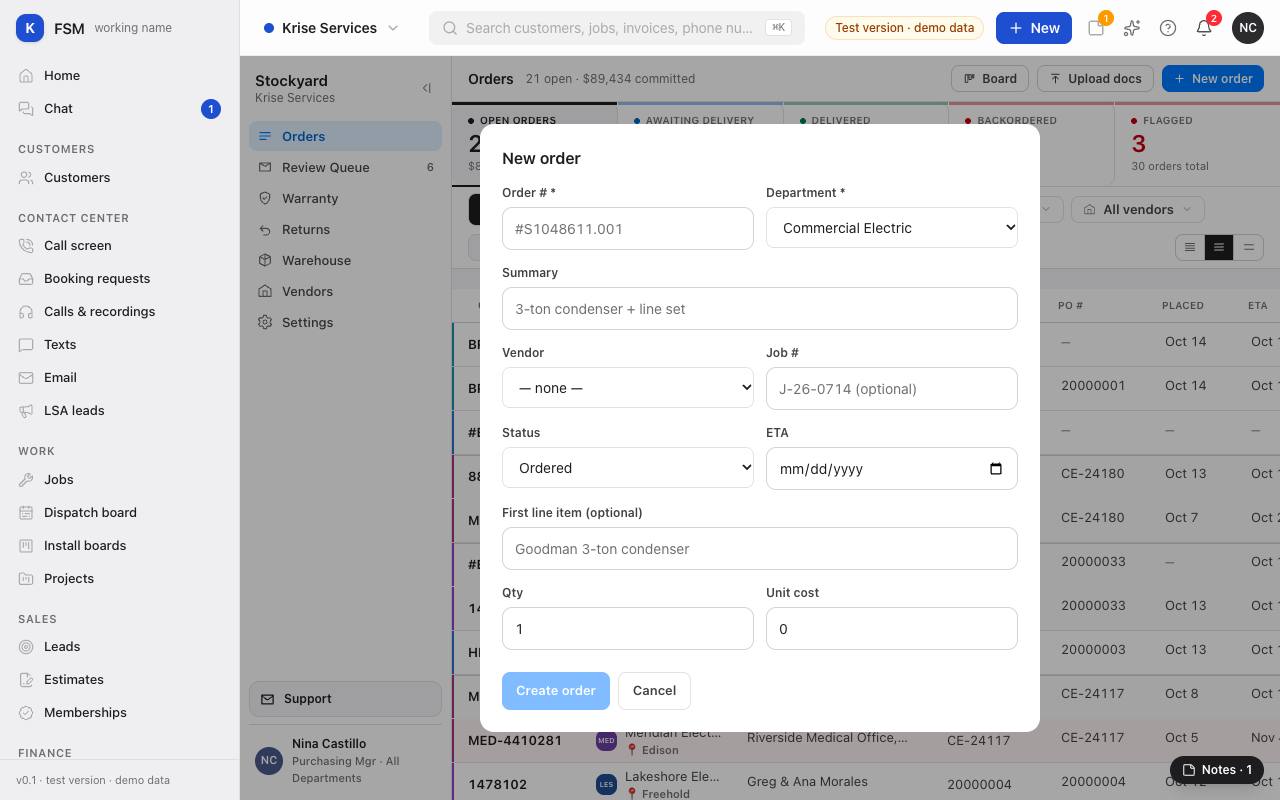
- 1Press New order.
- 2Fill in the Order #, the Division, a short summary, the Vendor and the Job # it's for.
- 3Set the status and the ETA, and add the first line if you have it.
- 4Press Create order.
The rest of Stockyard
- Review Queue: order emails and documents from vendors, waiting for someone to check them before they join Orders. Reading vendors' emails on its own comes once the email connection is set up.
- Warehouse: items, bins and trucks, what's on hand and below its minimum, receiving and moving stock, counts and the ledger.
- Warranty and Returns: claims and returns to vendors, with where each stands.
- Vendors: the vendor list.