Most estimates offer the customer one option. When they should choose, add more (up to four), or start from a template whose options are already named, such as Good, Better, Best or Gold, Silver, Platinum. Each option is a set of lines from the Pricebook, priced for this customer today: their address's sales tax, and member prices if they're a member.
Start one
- 1On the job's page (or the sales lead's), press Start an estimate. Or use + New → Estimate at the top of any screen: find the customer, pick their job or lead.
- 2Name it the way the customer will read it, for example "Fix the fan, or a new system", and press Start.
- 3The draft opens in the editor. It saves as you work; the top says Saved with the time, and Undo takes back the last change.
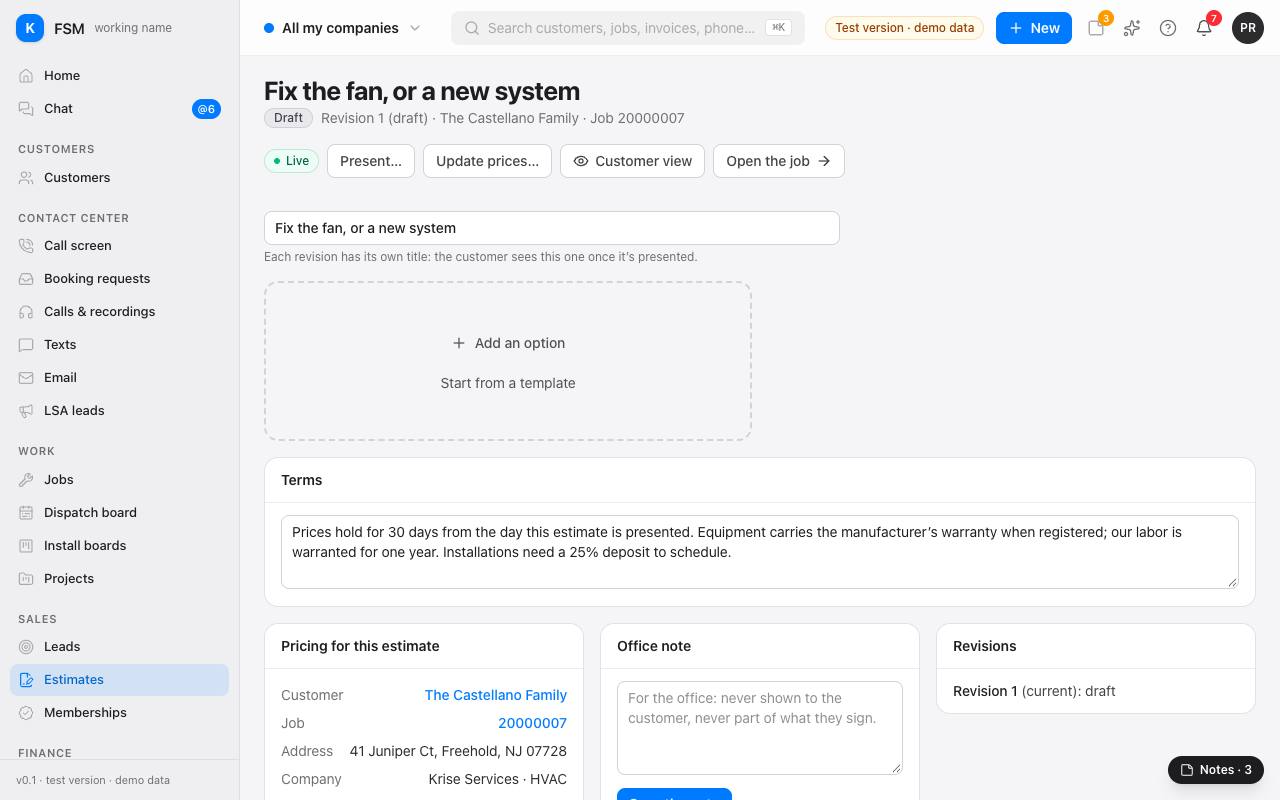
Start from a template
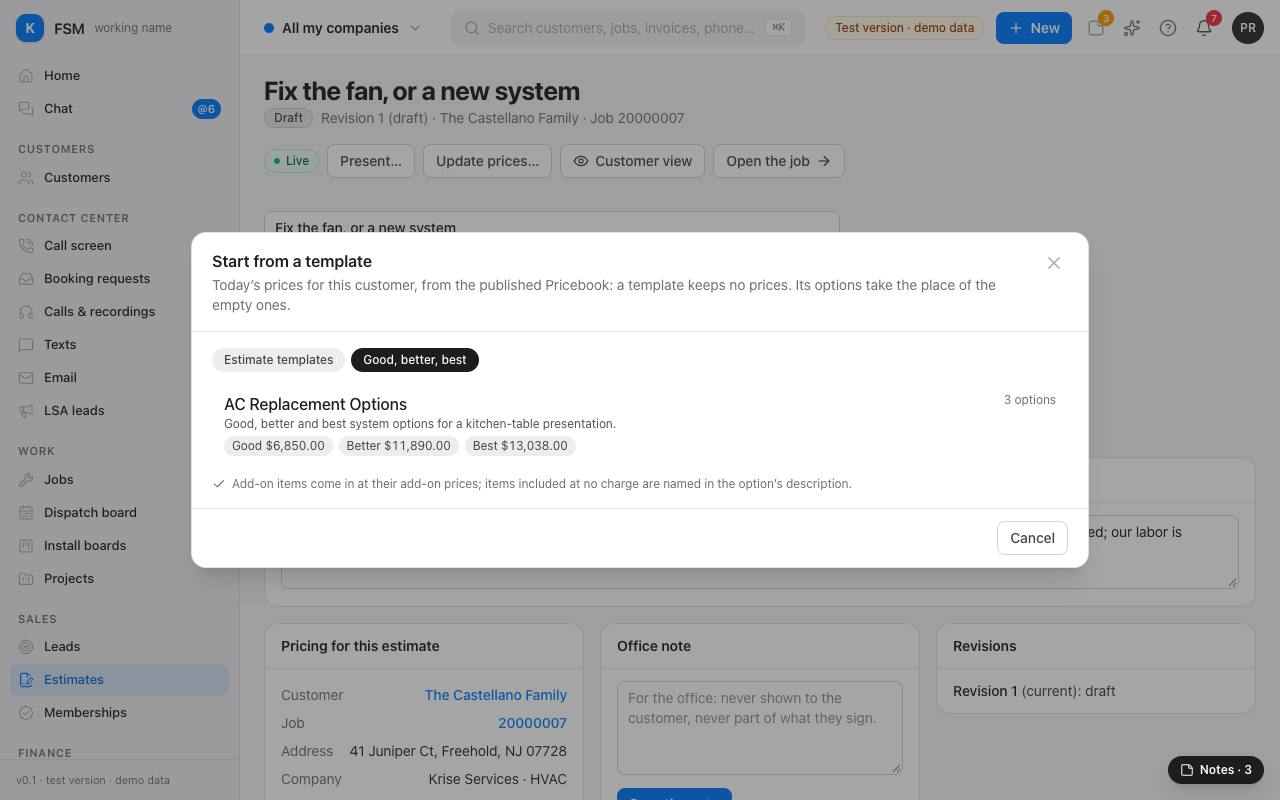
Templates are ready-made options from the Pricebook. A template keeps no prices: everything comes in at today's prices for this customer.
- 1Press Start from a template.
- 2It opens on Templates with options: each shows its options' names (for example Gold · Silver · Platinum) and what each comes to. Estimate templates are single options, such as "AC Tune-Up".
- 3Click the one you want. Its options take the place of the empty ones, and a message offers Undo if it wasn't the right one.
Build the options yourself
- 1Press Add an option. It's called Option 1 (Option 2 and so on as you add more): rename it to anything that reads well and describe it in a sentence. With one option, the customer reads it as a single proposal under the estimate's title.
- 2Add lines with Add from the Pricebook (search by name, code or description), Add a template (a template's lines, into this option), or Typed line for something that isn't in the Pricebook.
- 3For each line, set the quantity. Tick Add-on for an extra the customer can choose, and Taxed where sales tax applies.
- 4With several options, press the star Recommended on the one you'd pick for them.
- 5Each option shows its subtotal, sales tax and total as you go.
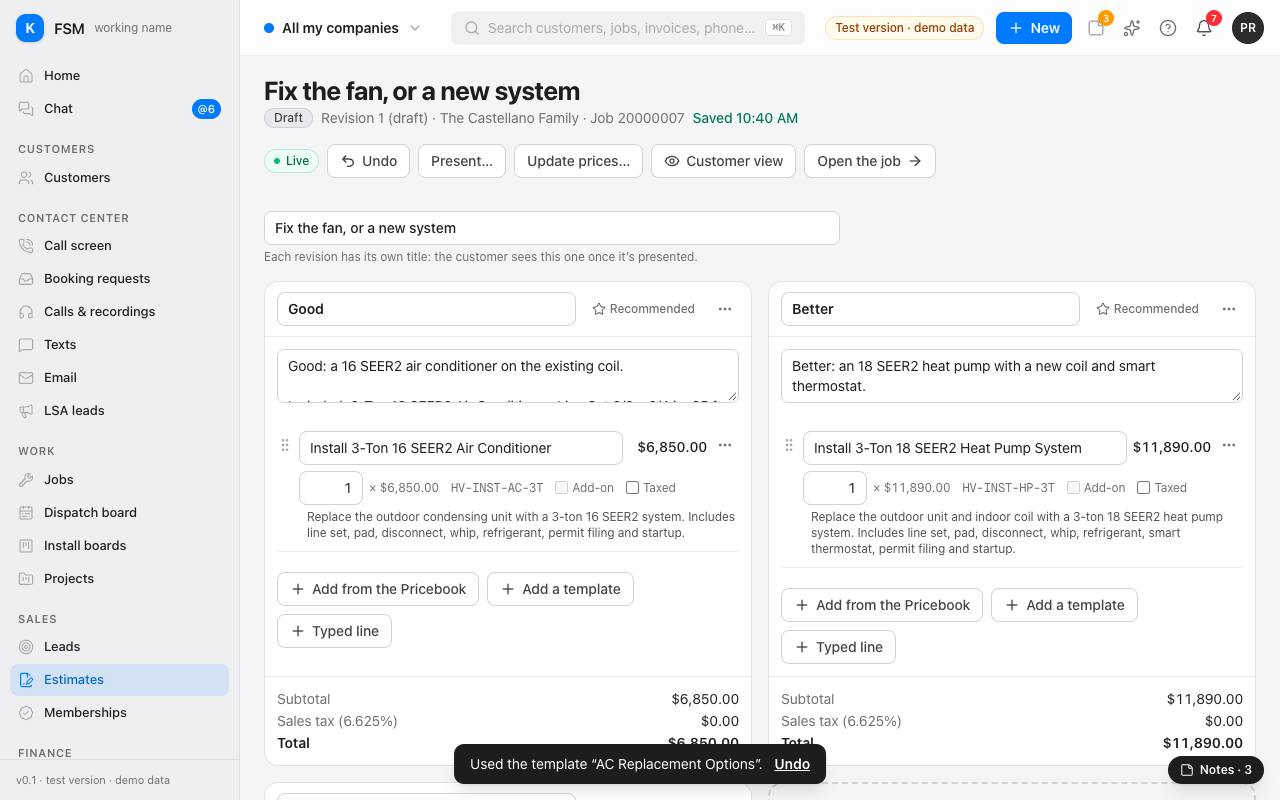
Tip: the ⋯ menu on an option or a line moves, copies or removes it, and on a line changes its price. Update prices… lists what changed in the Pricebook since the draft was priced, and brings it up to date.
What's on the right
- Pricing for this estimate: the customer, job, address, company, which Pricebook prices it, whether they're a member, the sales tax rate, and what the customer will see on each option.
- Office note: for the office only, never shown to the customer.
- Revisions and Links sent: see the next guide.
When it's ready, read Presenting an estimate and getting it signed.