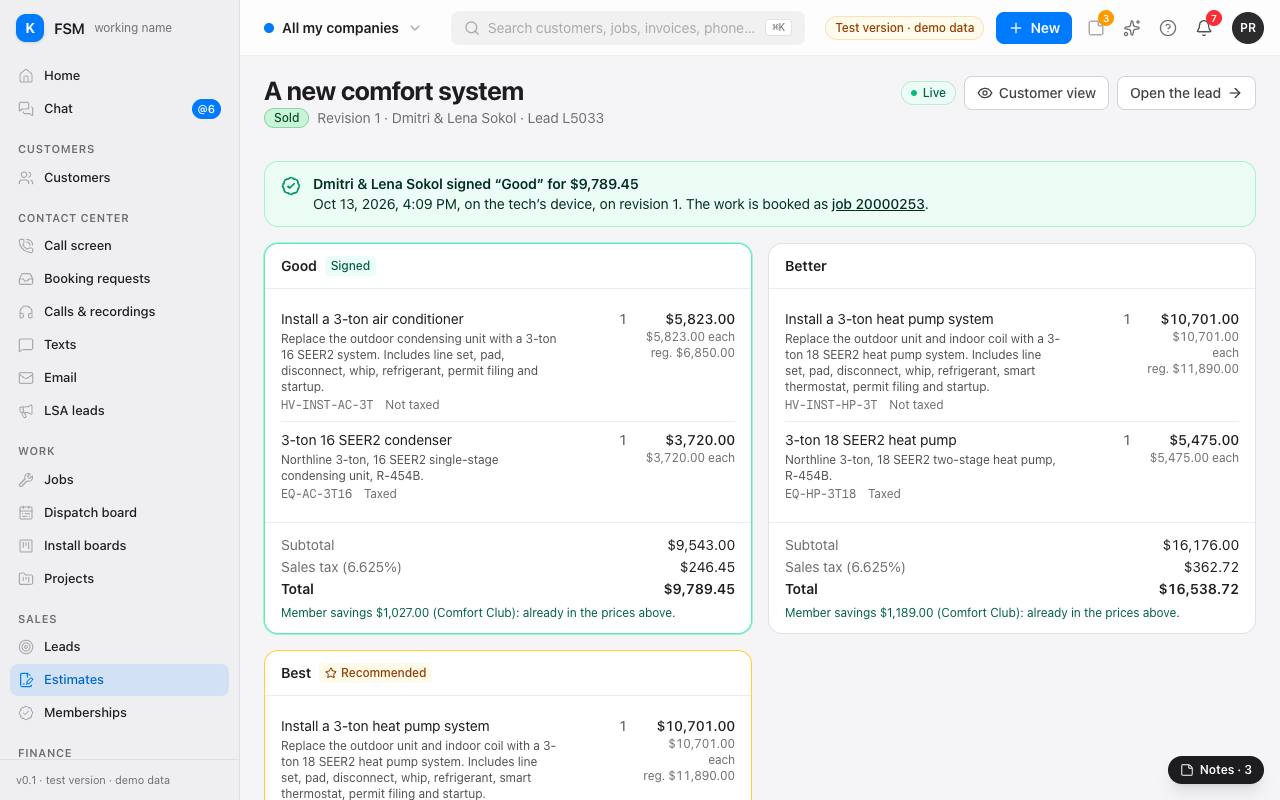
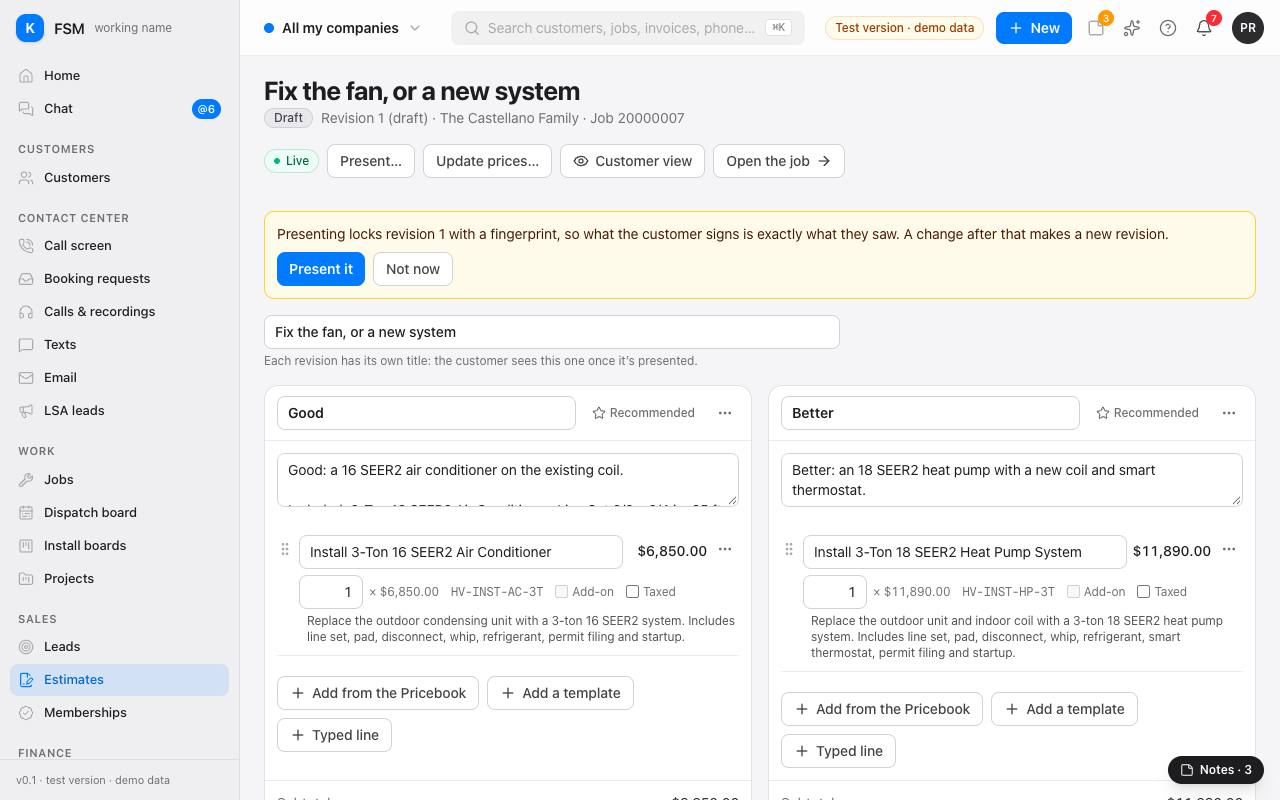
Presenting an estimate freezes it, so what the customer signs is exactly what they saw. After that, a change makes a new revision.
Present it
- 1In the estimate's editor, press Present….
- 2The page explains what presenting does. Press Present it (or Not now).
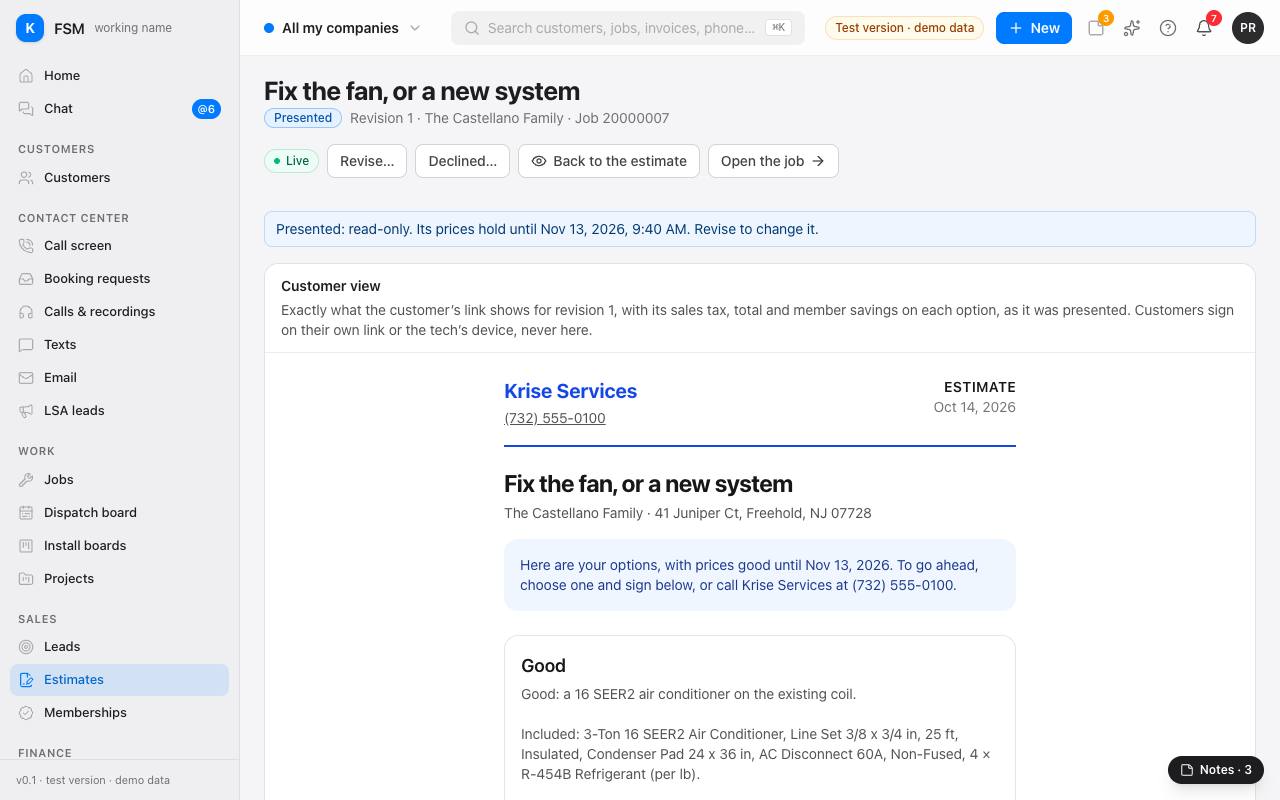
- 3The estimate now says Presented: it's read-only, and the top says until when its prices hold.
Show the customer
- 1Press Customer view to see exactly what the customer sees: each option with its sales tax, total and member savings, and the terms.
- 2Customers sign on the tech's device, or on their own link. They never sign on this page.
- 3Back to the estimate returns to the editor's view.
Good to know: sending the customer a link by text or email comes once texting and email are connected. Links sent lists each link made for the estimate and whether it was opened.
Change it after presenting
- Press Revise… to copy it into a new revision you can change. The presented revision stays on file under Revisions, with its fingerprint.
- Press Declined… if the customer said no, with why.
Once it's signed
- 1The estimate says Sold, with who signed which option, for how much, when and where (for example on the tech's device).
- 2Sold work is booked as a job, now or later: "done now" adds it to this job's invoice; "done later" waits under Sold work to book on Home.
- 3The Estimates list shows each estimate's status and what it sold for.