Every invoice belongs to a job and goes to that job's division's books. Each set of books has its own invoice numbers, its own card payments and its own QuickBooks company, and they never mix.
Finish a draft invoice
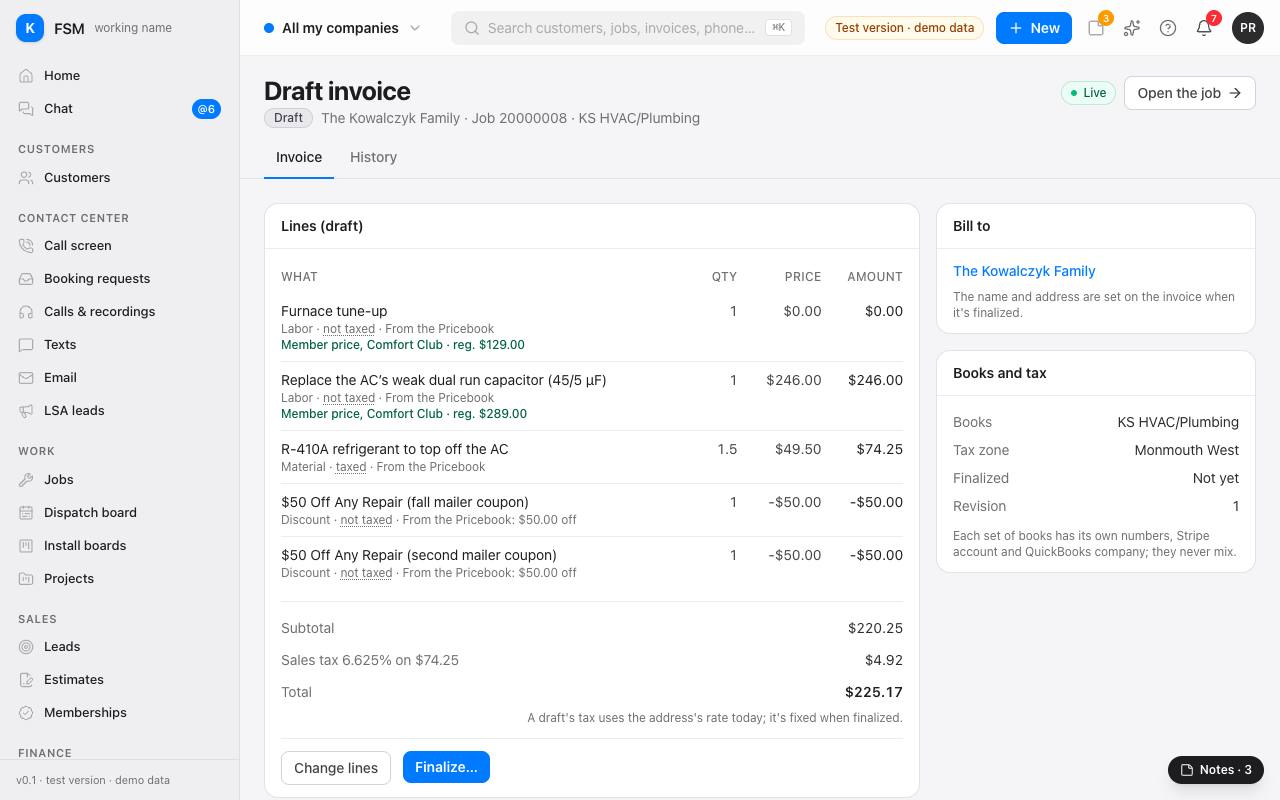
- 1On the job's page, press Start an invoice, or open the draft listed under Invoices.
- 2Press Change lines to add or change what's billed. Lines from the Pricebook come in at the customer's prices: a member sees Member price with the regular price beside it, and coupons come off as their own lines.
- 3Check the total. A draft's sales tax uses the address's rate today.
- 4Press Finalize…. The invoice gets its number from its books, and the name, address and tax are fixed as they are now.
Take a payment
- 1On a finalized invoice, press Record cash or a check.
- 2Pick Check or Cash, type the amount and the check number.
- 3Leave Email the customer a receipt ticked if they want one.
- 4Press Record payment. The balance goes down, and the payment shows under Payments.
Good to know: cards and bank payments go through the payment company's own secure page, never typed into Torque. Taking them, and sending a pay link by text or email, come once those services are connected. Each invoice lists any pay links made for it, and whether the customer opened them.
Correct a finalized invoice
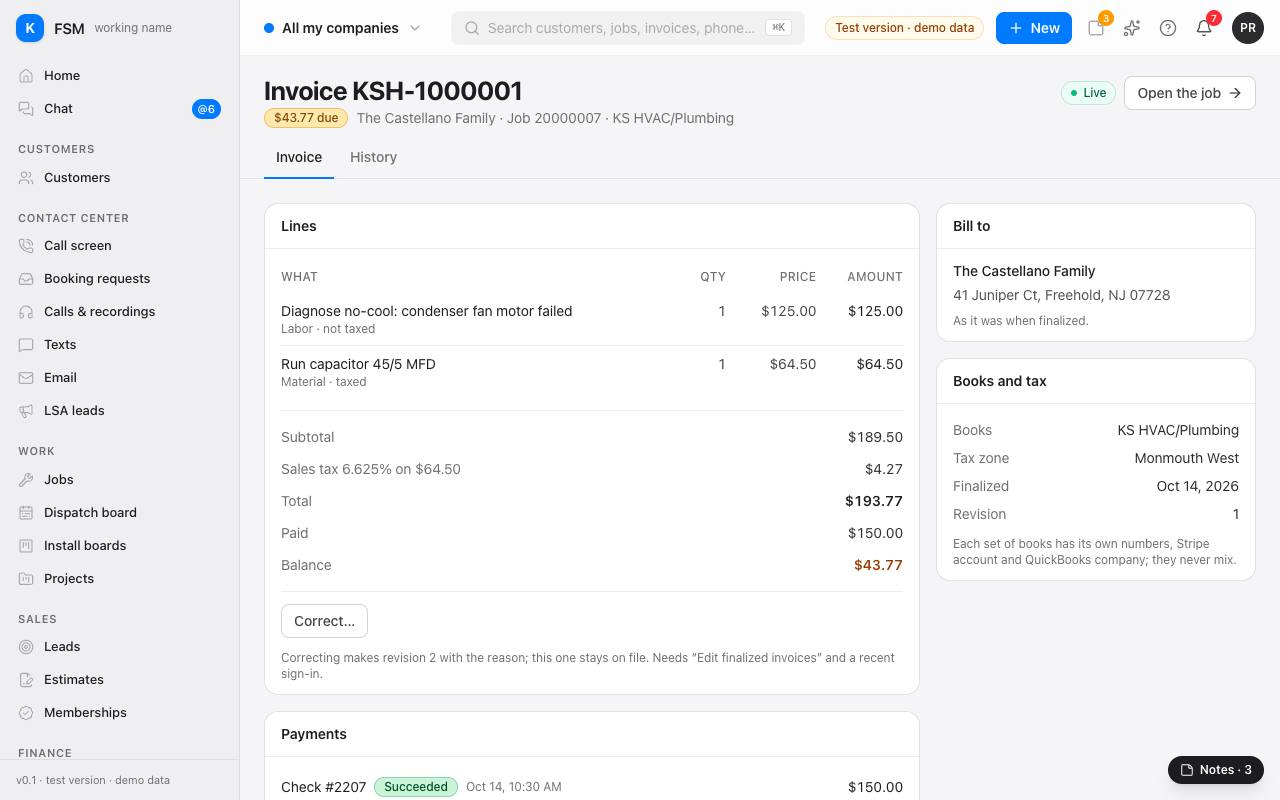
Press Correct… to make a new revision with the reason. The one before stays on file. It needs the Edit finalized invoices permission.
Refunds
- 1Ask for one: under the payment, press Ask for a refund…, with the amount, how it's paid back and why. Someone with Request refunds but not Approve and issue refunds sees it Waiting for approval.
- 2Approve it: accounting presses Approve or Turn down… (with why), on the invoice or on the Payments page.
- 3Pay it: an approved check or cash refund shows on Home under Approved refunds to pay by check or cash. Hand it over or mail it, then press Record as paid… on the Payments page. Card and bank refunds go back through the payment company once it's connected.
Payments and the books
- Payments lists every payment: who took it, how, on which invoices, and where it stands with QuickBooks.
- Invoices shows what's owed by age (current, 1–30 days and so on), each company on its own, sent and not sent.
- Accounting sync lists what went to QuickBooks, what's waiting, and anything QuickBooks refused that needs a person. Nothing goes to QuickBooks by itself: a finalized invoice sits under Waiting for accounting, with its manager review beside it, until accounting ticks it and presses Send to QuickBooks (one, or many at once). Its payments and credit memos follow it.