Texts is the office's inbox for texting customers: each conversation is one company number and one customer number. Each text says where it stands: queued, sent, delivered or failed.
Find a conversation
- The newest are at the top. The filters show Needs reply, Unread and Waiting for a job, each with how many.
- Search by the customer's name, their number, or words in a text. Words are looked for in the last 90 days' texts.
- Home's Texts waiting for a job opens the inbox on that filter.
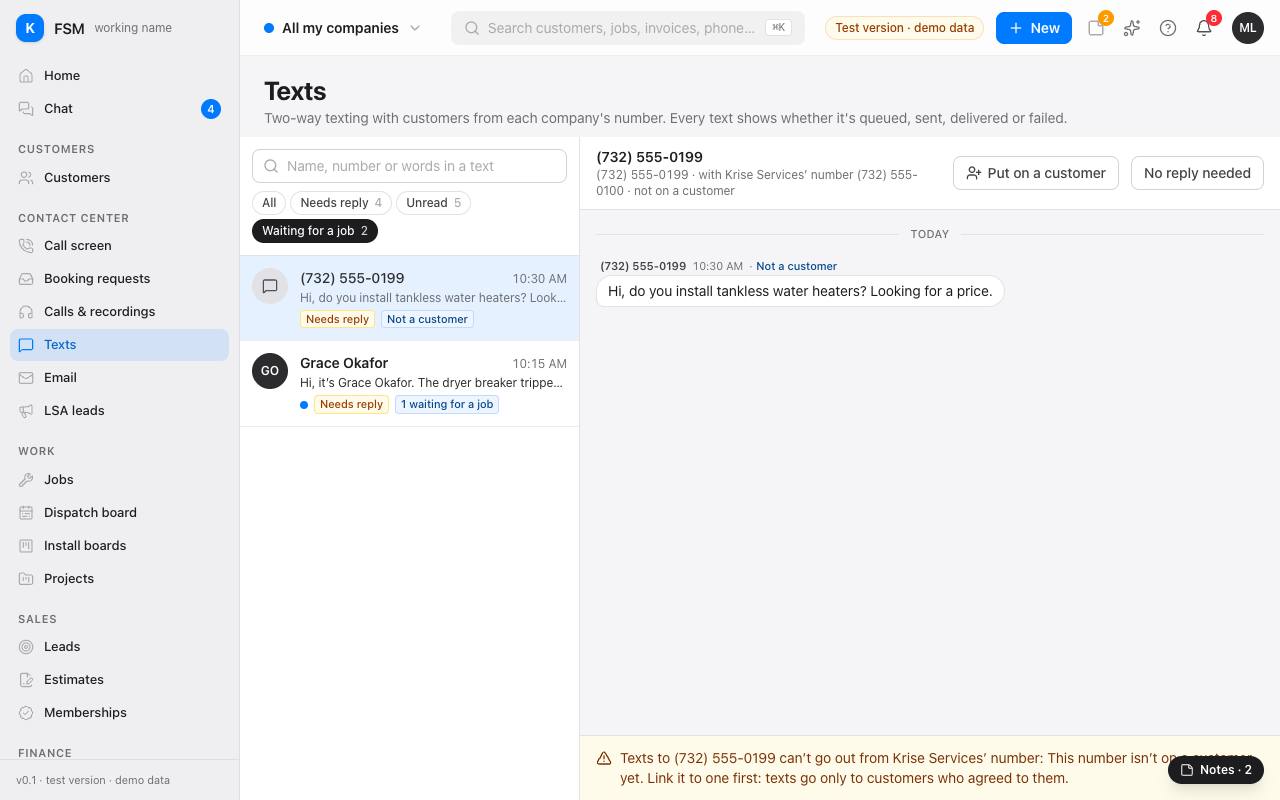
Put a waiting text on a job
A text waits when Torque can't tell which job it's about: the customer has more than one open job, none, or the number isn't on a customer.
- 1Open the conversation. It says how many of their texts wait for a job.
- 2Under the text, pick the job from Put it on a job and press Put on job. Or press Not about a job.
- 3The text then shows on that job's Chat & texts tab, for the crew to read.
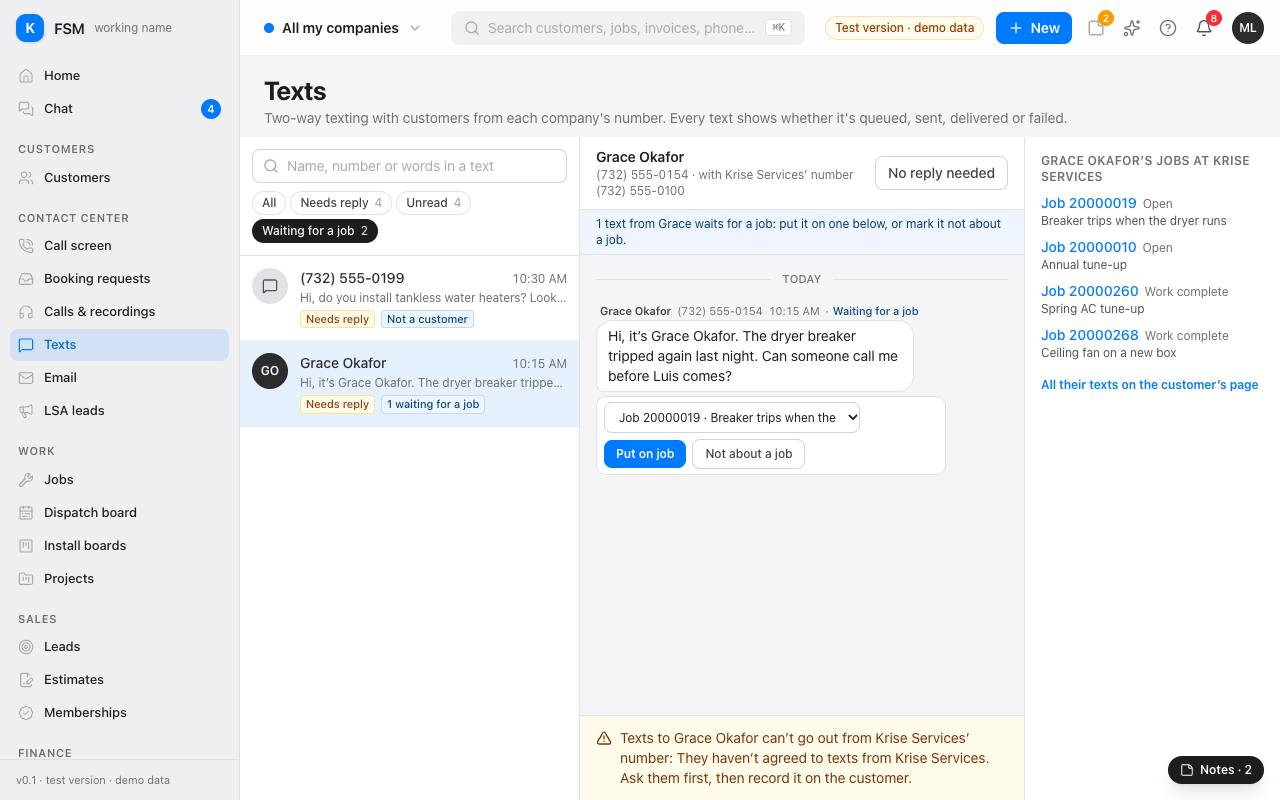
A number that isn't on a customer
Press Put on a customer and find them. The number is added to their phones, and its texts go where their jobs are. They still need to agree to texts before anyone texts them.
Reply
- 1Type in the box at the bottom of the conversation and send. The reply goes from the company's number.
- 2It shows at once as sending, then its real state. A text that can't go says why: for example the customer hasn't agreed to texts from that company, or they texted STOP.
- 3Nothing needs saying back? Press No reply needed to clear Needs reply for everyone.
Good to know: texts go out once the texting service is connected. Until then, a reply waits as queued.
Tip: a tech reads their job's texts in the field app's Inbox, without seeing the customer's number; replies come from the office for now. The inbox is the office's.