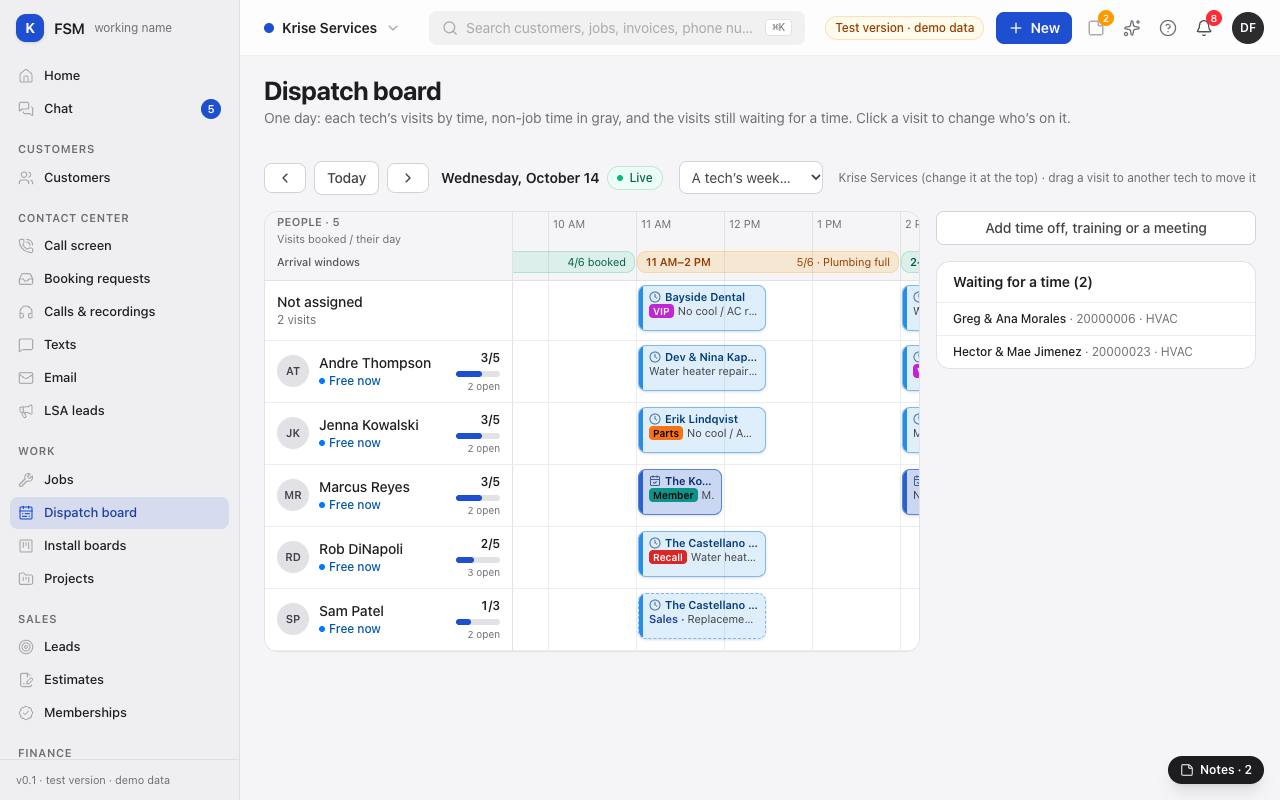
The Schedule shows one day: a row for each tech, their visits placed by time, and time away in gray. It follows the company picked at the top of the screen.
Read the board
- Across the top, each arrival window says how many visits are booked against what it can take, and which division is full.
- Beside each tech: whether they're free, on the way or on site right now, and their day booked against what they can take (for example 3/5, 2 open).
- The Unassigned button at the top opens a list over the board: No tech yet (visits on this day nobody is on yet) and No time yet (booked work with no day yet). It has a red outline while anything is in it.
- Move between days with the arrows, or press Today.
What the colors mean
Each visit's color says where it stands. Rest the pointer on a visit to see it in words.
- Amber: needs a date.
- Blue: scheduled. Deeper blue: the customer confirmed the time.
- Purple: dispatched or on the way.
- Green: the tech is working.
- Yellow: paused (a parts run, say).
- Orange: the job is on hold.
- White: done.
- Red outline: late, past its arrival window and nobody has arrived.
- A dashed edge is a sales visit. Dark gray blocks are meetings, training and time off.
- The small colored labels on a visit are the job's tags, such as VIP or Parts.
Move a visit
- 1Drag the visit onto another tech's row. It moves to them, and the board says so at the top. A visit under No tech yet drags from the Unassigned list the same way. To take a visit's techs off, drag it onto the Unassigned button.
- 2Or click the visit. Its panel opens on the right: the job, the customer, and Time on the day.
- 3To change the time, pick an arrival window under Move to… and press Set time.
- 4To change who's on it, tick the techs under Who's on it (the first is the lead) and press Save.
- 5If the tech is missing a skill or the day is full, the board says so and offers Assign anyway.
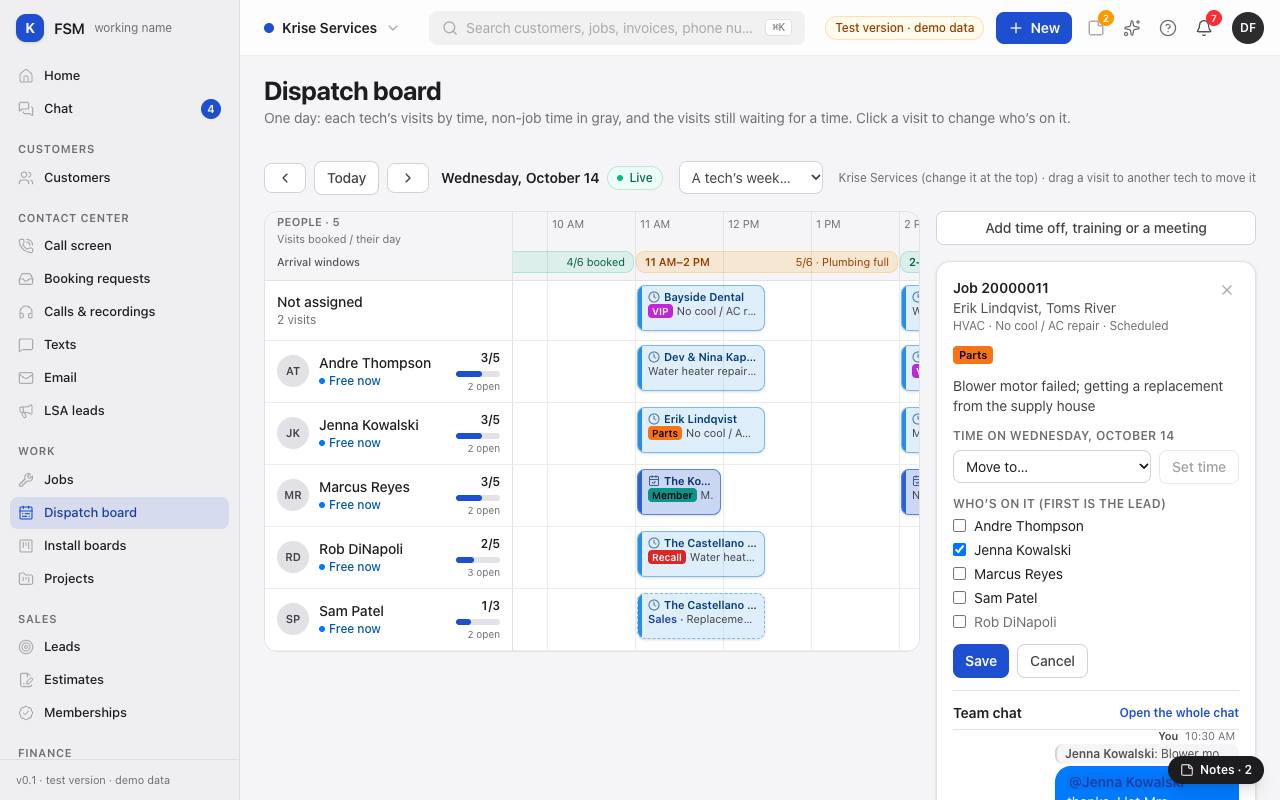
Tip: the visit's panel also shows the job's Team chat, so you can tell the crew about a change without leaving the board.
Add time off, training or a meeting
- 1Press Add time off, training or a meeting.
- 2Pick What it is (meeting, training, shop time or time off), tick Who, and set the times or All day.
- 3Add a title and where it is if it helps, then press Add it. It shows in dark gray on each person's row; training and time off take them off the schedule.
See one tech's week
- 1Pick a name from A tech's week… at the top of the page.
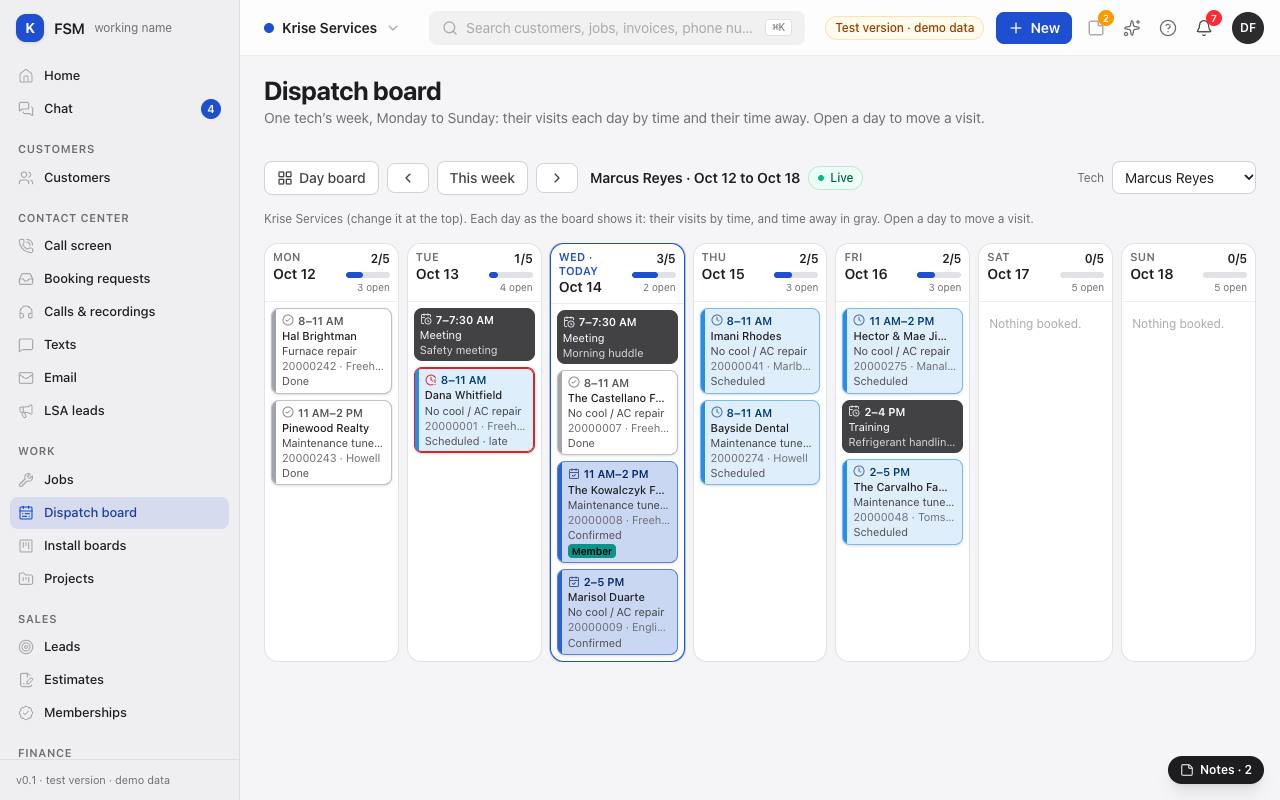
- 2You see Monday to Sunday: each day's visits by time, their time away, and each day booked against what they can take. Today is outlined.
- 3Use the arrows or This week to move between weeks, and Tech to switch to someone else.
- 4Click a day's heading to open that day on the board, where visits move. Nothing is dragged in the week.