Every job has one page with everything about it. Open it from Jobs, the schedule, the customer's page, or by searching its number at the top of the screen.
What's on it
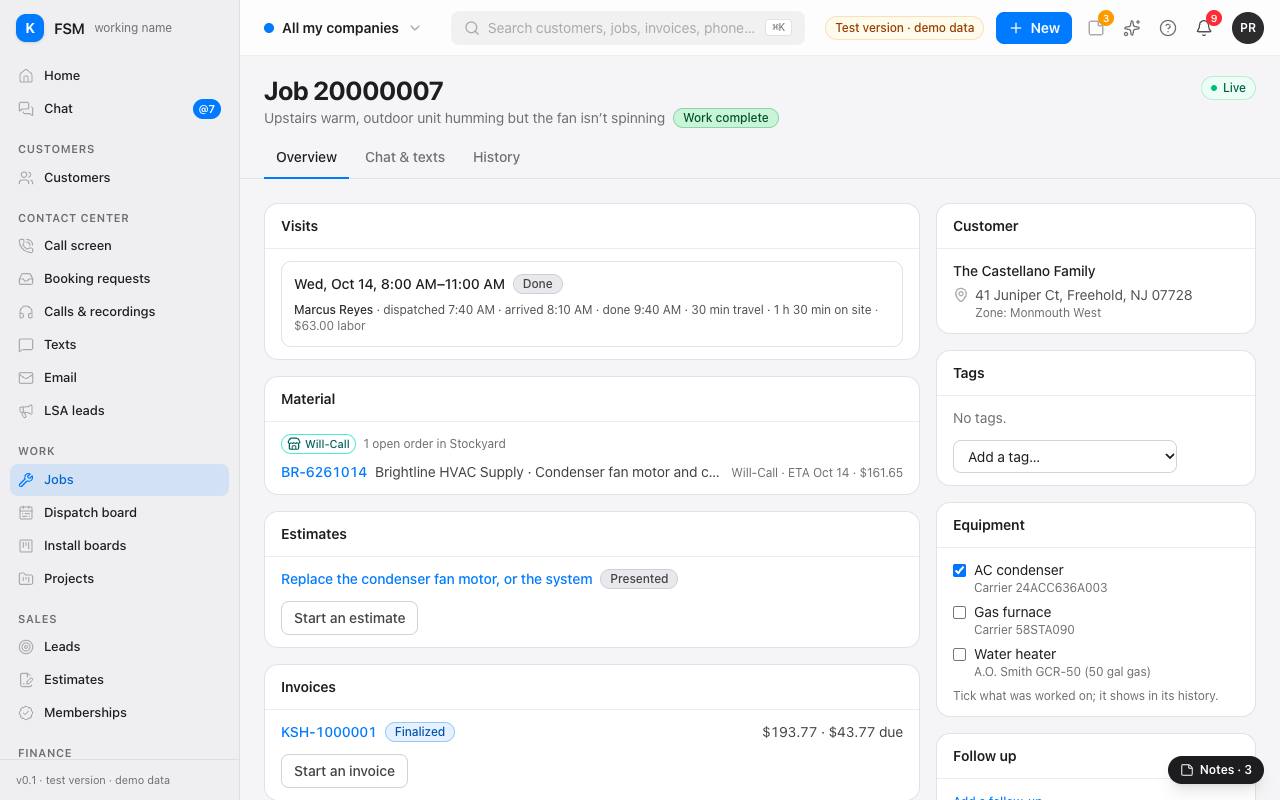
- The header says the job's number, what it's about and where it stands (booked, in progress, on hold, work complete, closed).
- Visits: each trip to the customer, with the tech, when they were dispatched, arrived and finished, travel and time on site.
- Material: what's on order for the job in Stockyard, its vendor, status and when it's due.
- Estimates: the options offered for this job. Start an estimate makes a new one.
- Invoices: the job's invoices and what's still due. Start an invoice makes one.
- Forms: checklists the tech filled in, and the answers from the call that booked it.
- On the right: the customer and address, the job's Tags, the Equipment at the address, follow-ups, and the job's company, division, department, books, type and campaign.
- Time and credit: time on site, labor cost, and which tech gets credit for the work.
Tag a job
- 1Under Tags, pick one from Add a tag….
- 2The tag shows on the jobs list and the schedule. Some tags move the job on an install board, and the page says so.
- 3Press the × on a tag to take it off.
Note the equipment worked on
Under Equipment, tick each piece the tech worked on. It shows in that equipment's history on the customer's page.
Talk about the job
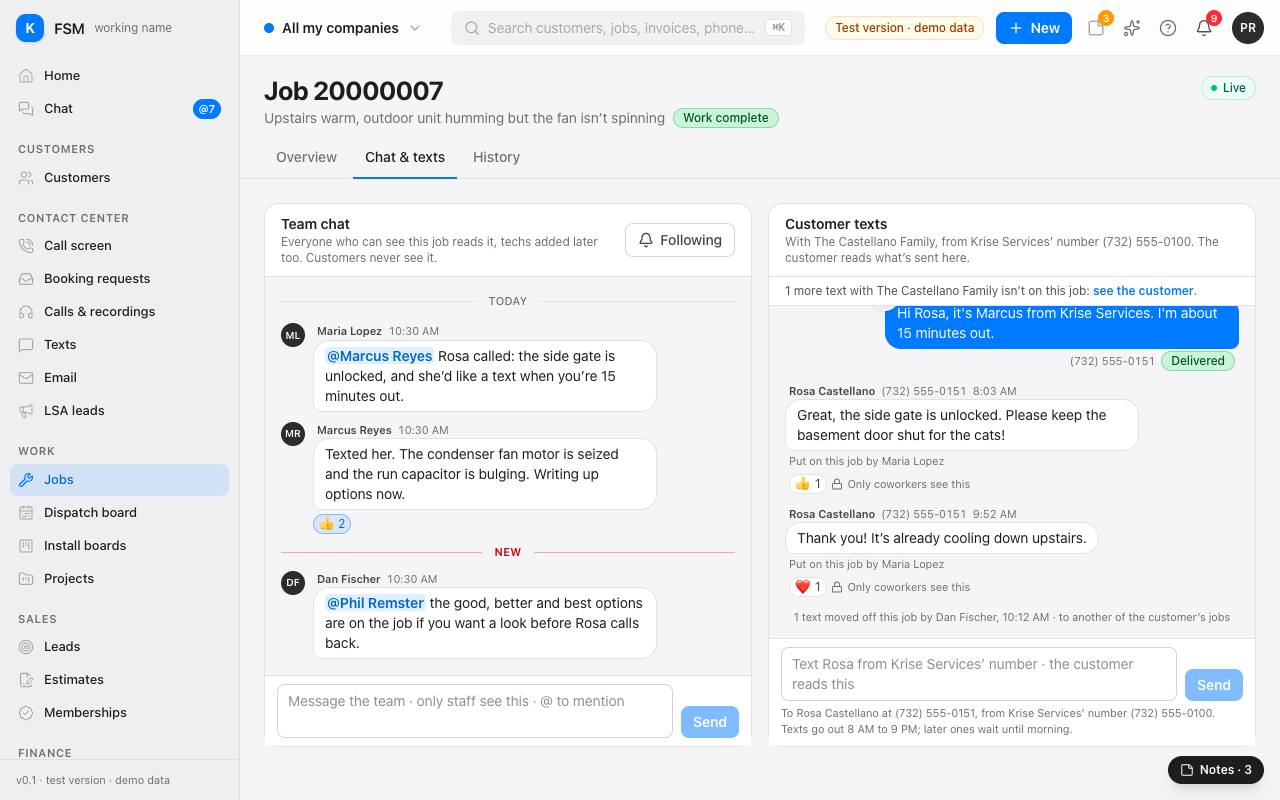
Open the Chat & texts tab.
- Team chat is for staff only: everyone who can see the job reads it, techs added later too. Customers never see it.
- Customer texts are the texts with the customer from the company's number. The customer reads what's sent there.
Its history
The History tab lists every change to the job: who did what, and when.
Tip: Put it in a project groups this job with others, from any division, under one project.