Every call is taken on the Call screen, under Contact Center in the menu. You see who's calling before you answer, book the work while you talk, and every call ends up in Calls & recordings.
Take the call
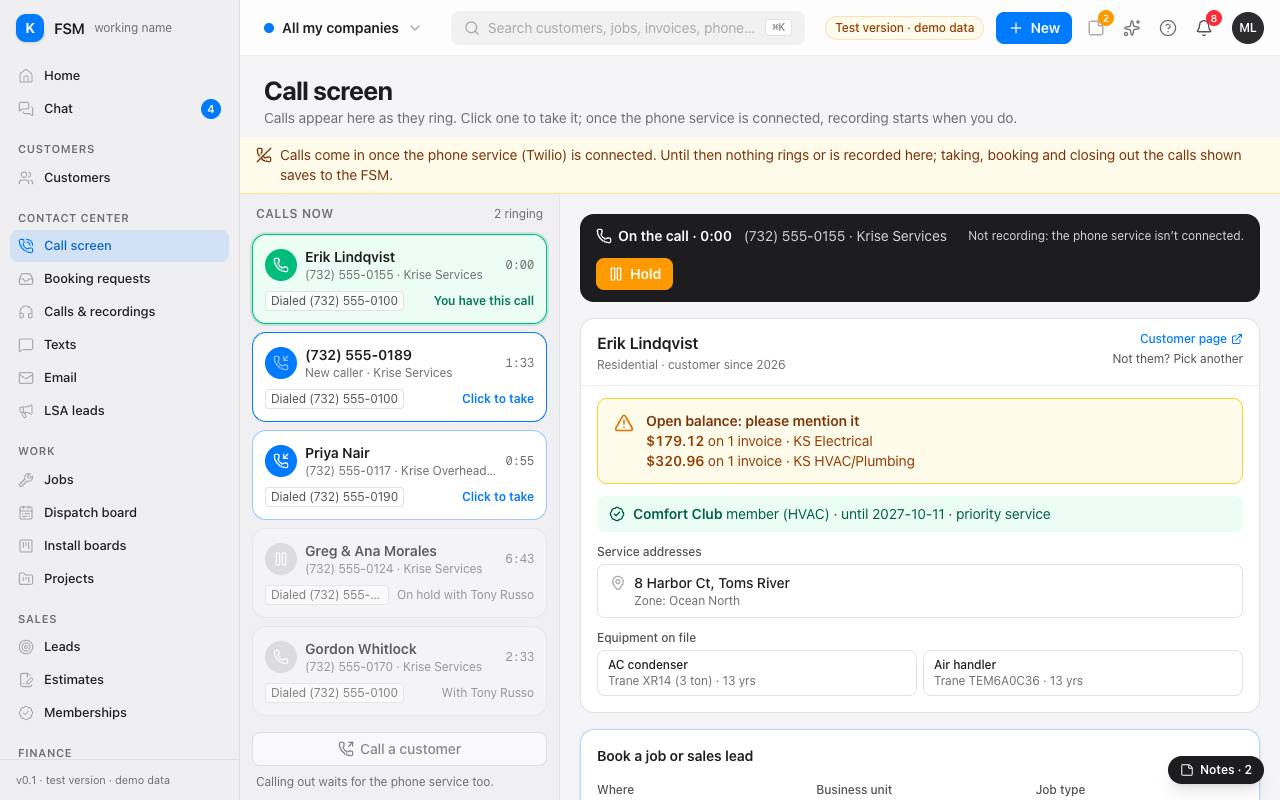
- 1Open Call screen. Calls ringing now are listed on the left under Calls now, each with the caller's name (or New caller when the number isn't on a customer), the company number they dialed and how long they've waited.
- 2Click a ringing call to take it. It turns green and says You have this call.
- 3The right side fills in with what you need while you talk: the customer, any open balance (mention it), their membership, their addresses and the equipment on file.
- 4Need a moment? Press Hold. The call shows On hold · pick it back up until you click it again.
Book a job or a sales lead
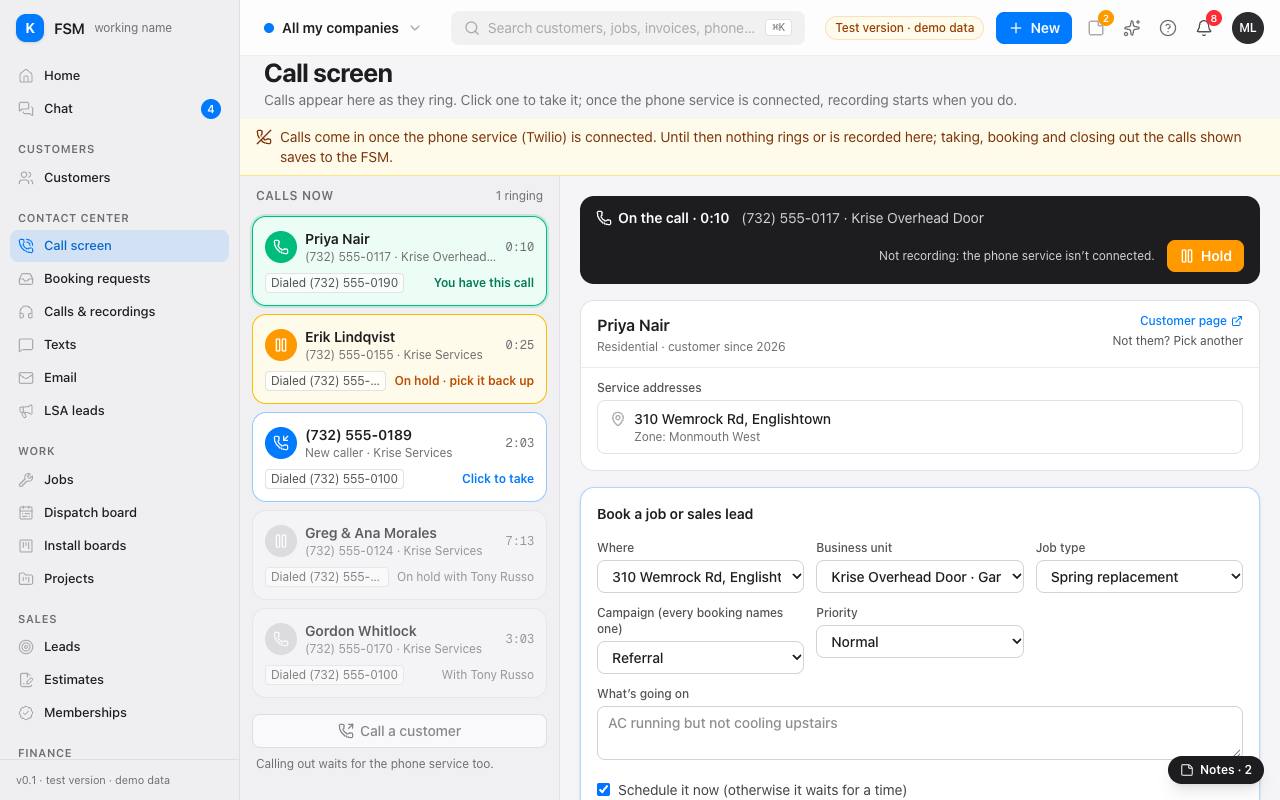
- 1In Book a job or sales lead, check Where (the address the work is at).
- 2Pick the Department, then the Job type. A job type for a sale books a sales lead instead of a job.
- 3Pick the Campaign they found you through. Every booking names one.
- 4Set the Priority and type What's going on in the customer's words.
- 5To give them a time now, tick Schedule it now and click an arrival window. Each window says how many spots are left; a full one can't be picked.
- 6Press Book it. The new job opens, ready for the dispatcher.
A call that isn't a booking
Pick a Close-out reason (for example Billing question or Wrong number), add a note if it helps, and press Close out the call. Reasons marked excused don't count against the booking rate.
Booking requests
Requests from the website and online booking wait in Booking requests until someone confirms them. Open one to see what they asked for and the times that suit them. Press Add them as a new customer if they're new, then Book it, with the same rules and capacity as a call. I reached out to them and Decline it… keep track of the rest.
Calls & recordings
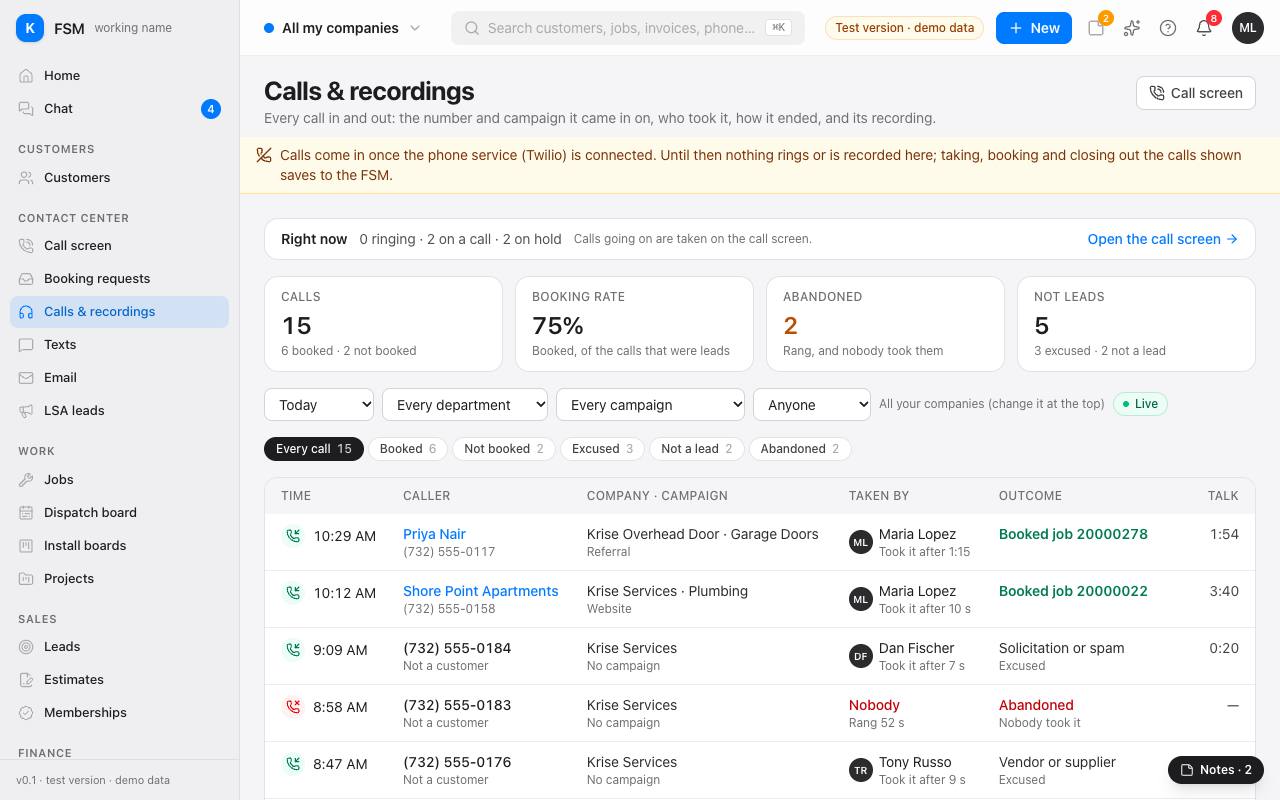
Calls & recordings lists every call: who took it, how it ended, and its recording once the phone service records them. The cards across the top count the calls, the booking rate, calls nobody answered and calls that weren't leads. Filter by days, division, campaign or person.