Chat is for talking with your team: direct messages, group messages, spaces for a company or a division, and each job's team chat. Only staff see it; customers never do.
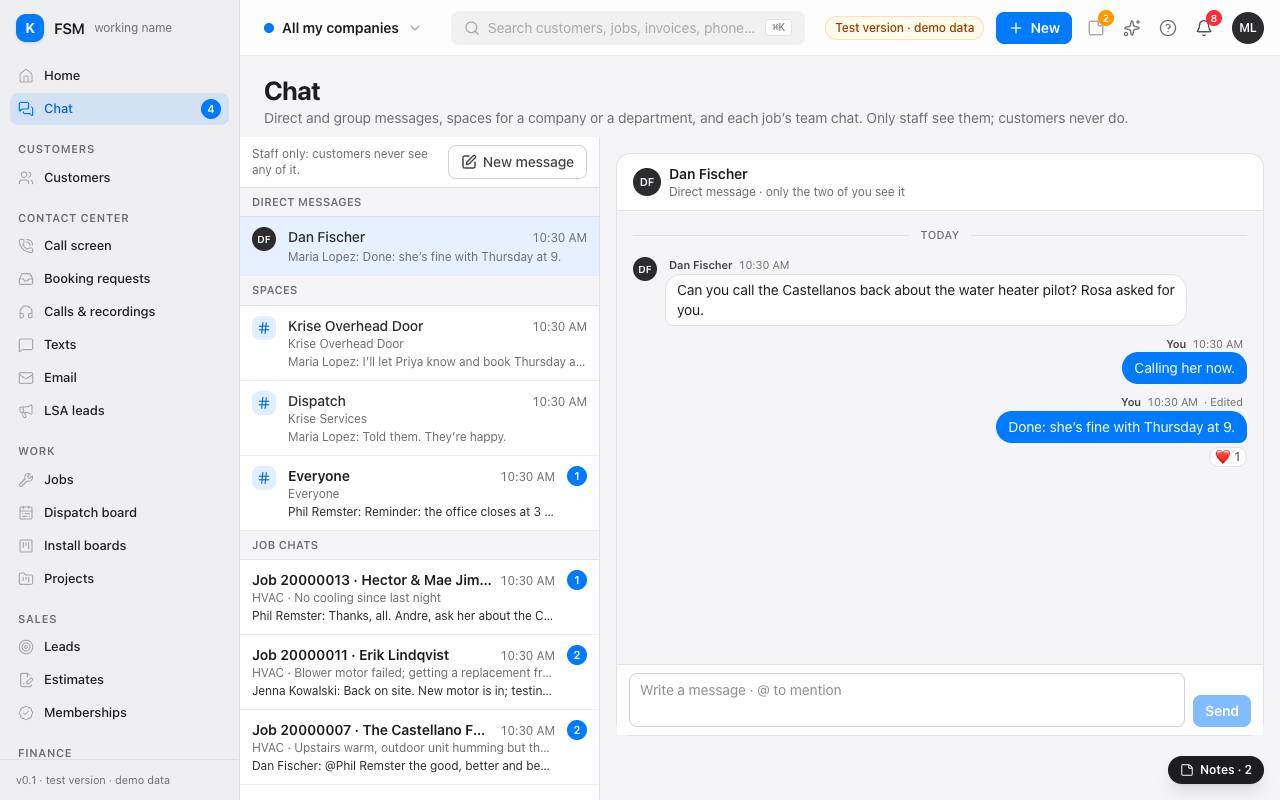
Find your conversations
The left side lists Direct messages, Spaces and Job chats, newest first, each with how many messages you haven't read. An @ means someone mentioned you. The Chat entry in the menu shows the same count.
Start one
- 1Press New message.
- 2Pick one person for a direct message, or more for a group. Only the people in it see it.
- 3Type and press Send.
Spaces are for a whole company or division, such as Dispatch or Everyone. Whoever moderates chat for the whole group makes new ones with New space.
In a conversation
- @name mentions someone: they're told, and the chat shows it to them.
- Rest the pointer on a message to React, Reply to it, or Edit and Delete your own.
- Each job's chat is also on the job's page under Chat & texts, and in the job's panel on the schedule.
Tip: a job's team chat is read by everyone who can see the job, techs added later too, so it's the place for anything the crew should know.